
Variables Modal
How To Use Variables For Your Narrative
Section titled “How To Use Variables For Your Narrative”When designing your narrative, you may find you want to store data or information, such as a decision that the player made, the player’s reputation with a city, how much various characters like the player, etc.
This is especially true of non-linear, dynamic narrative, and even more true with systems-based, emergent narrative.
This is where Variables and the Variables Modal come to the rescue.
Without using these, state and non-linearity would be all but impossible in NarrativeFlow.
Variables allow you to store information, decisions, and any text or number-based data.
For example, let’s say you want to store what the player decides to name their character in a variable and reference that throughout your narrative (think Startdew Valley, Persona, etc.). Variables are the perfect way to accomplish this.
Anywhere in your narrative, you can change/update or simply reference the value stored in a Variable to influence which branches in your Node chain are taken, what text is displayed to the player, what choices are available to the player, etc.
You can also tell your game engine to access the Variables you define in NarrativeFlow and react however you want.
For example, perhaps you have items in a shop or even a special area somewhere in the world that can only be accessed if the player’s reputation is high enough.
You can easily reference a Reputation Variable you define to check it’s current value and react accordingly.
Using The Variables Modal
Section titled “Using The Variables Modal”You can open the Variables Modal by clicking the “Variables” button in the menu bar.
Let’s talk about what each element of the Variables Modal does for you.
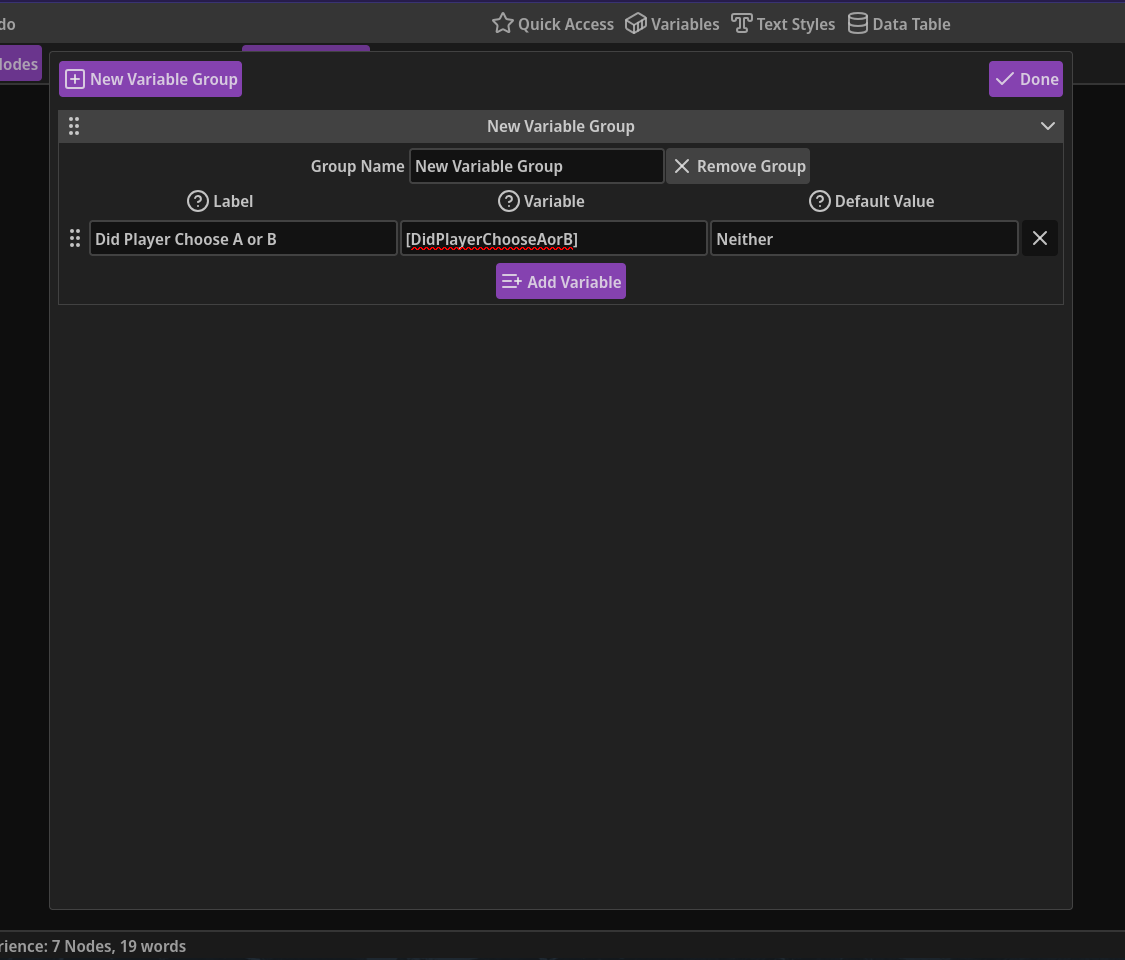
New Variable Group: Some games have several hundred (if not thousands) of Variables in their narrative. This is why, in NarrativeFlow, Variables are organized into groups.
Simply click this button to add a new Variable group to the bottom of the list.
Done: When you’re done adding or modifying your Variable definitions, click this button to close the modal.
If there are errors or problems with any definition, this button will be disabled and some text explaining the problem will appear to the left of the Done button.
If you see this error text, don’t worry, it doesn’t mean you did something wrong. It’s simply there to help you avoid name conflicts, missing labels, etc.
Drag-n-drop Sorting Handle: If you need to rearrange groups, click and hold this icon (the six-circle icon on the left of a group header) with your left mouse button then drag that group wherever you need it in your list of groups.
Collapsing groups by clicking on their header before you rearrange groups can make rearranging much easier.
Collapse/Expand Icon: The icon on the right of a group header indicates whether a group is collapsed or expanded. To toggle, simply click anywhere on a group’s header except for the sorting handle on the left of the header.
Group Name: You can rename a group to anything you want, helping you stay organized. Notice how a group’s name is displayed on its header.
If you want to remove a group, you can click the aptly named “Remove Group” button just to the right of the group name field. Note that all Variable definitions contained within the group will be removed as well.
Variable Definitions: Each Variable definition consists of a Label, Name, and Value field.
-
Label: This is the label you’ll click on to insert this Variable into a field when editing a Node in the Node Editor.
-
Variable: This is the identifier for a variable (its name). Every Variable field must be unique.
This is the exact text that represents a variable, and is the text that gets inserted into a field when inserting a Variable into a Node in the Node Editor.
When parsing your text for the Presented Text sections in the Node Editor and on Nodes themselves, NarrativeFlow will replace all occurrences of this exact identifier with the content of the Default Value field.
For example, if you’ve defined a variable with the identifier of
[PlayersName]and a Default Value ofSherlockand you insert it into a Dialog Node’s dialog field like this:Hello, [PlayersName]!, that dialog field will be parsed into this:Hello, Sherlock!. -
Default Value: This is the default/initial value that this variable holds. This can be left blank, which is considered an empty string (text with no characters).
To the left of the three fields is a handle you can grab with your mouse to reorder Variable definitions within a group.
To the right of variable definitions is an X button that will remove a definition, as long as there is at least two definitions in the group (because it doesn’t make sense to have an empty group).
Add Variable: This button will add a new, blank Variable definition to the bottom of the associated group.
Inserting Variables Into Nodes
Section titled “Inserting Variables Into Nodes”Now that we know how the Variables modal works, let’s learn how to insert our variables into Nodes.
Open any Node (except for a Teleport Node) in the Node Editor. Click in the field you want to insert the variable into.
Next, click the “Insert Variable” button in the top left of the Node Editor. When you do, the Insert Variable Menu will open.
Simply click the label of the variable you want to insert and it will be inserted exactly where your cursor was in the text field.