
Text Styles Modal
How To Define Custom Text Styles For Your Narrative
Section titled “How To Define Custom Text Styles For Your Narrative”When designing your narrative, you may desire to give specific text some styling, like bold, italic, a different color, etc.
For example, a certain adventure game is famous for styling important information in the narrative with specific colors, like this:

Some games will even give specific text animations like shaking, bouncing, color-shifting, fading in/out, etc.
NarrativeFlow allows you to define any custom Style you want that will act as a signal to your game engine to display text within that Style’s tags however you tell it to.
NOTE
By default, NarrativeFlow has some basic Text Styles already created for you.
Feel free to change these Styles however you wish, or even remove them if you don’t need them.
Using The Text Styles Modal
Section titled “Using The Text Styles Modal”You can open the Text Styles modal by clicking the “Text Styles” button in the menu bar.
Let’s talk about what each element of the Text Styles modal does and what it’s used for.
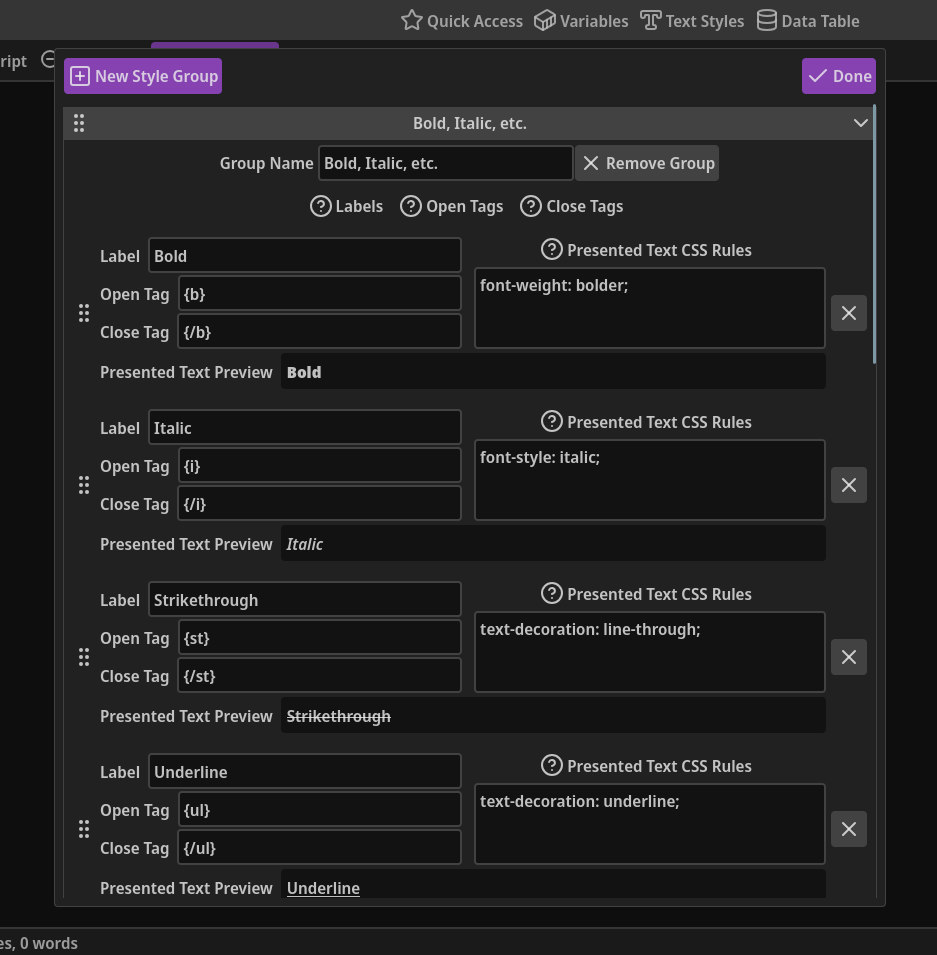
New Style Group: You can create an unlimited amount of Text Styles in NarrativeFlow. This is why, in NarrativeFlow, Text Styles are organized into groups.
Simply click this button to add a new group to the bottom of the list.
Done: When you’re done adding or modifying your Text Style definitions, click this button to close the modal.
If there are errors or problems with any definition, this button will be disabled and some text explaining the problem will appear to the left of the Done button.
If you see this error text, don’t worry, it doesn’t mean you did something wrong. It’s simply there to help you avoid tag name conflicts, missing labels, etc.
Drag-n-drop Sorting Handle: If you need to rearrange groups, click and hold this icon (the six-circle icon on the left of a group header) with your left mouse button, then drag that group wherever you need it in your list of groups.
Collapsing groups by clicking on their header before you rearrange groups can make rearranging much easier.
Collapse/Expand Icon: The icon on the right of a group header indicates whether a group is collapsed or expanded. To toggle, simply click anywhere on a group’s header except for the sorting handle on the left of the header.
Group Name: You can rename a group to anything you want, helping you stay organized. Notice how a group’s name is displayed on its header.
If you want to remove a group, you can click the aptly named “Remove Group” button just to the right of the group name field. Note that all Text Style definitions contained within the group will be removed as well.
Text Style Definitions: Each Text Style definition consists of a Label, Open Tag, Close Tag, and Presented Text CSS Rules field.
-
Label: This is the label you’ll click on to insert this Text Style into a field when editing a Node in the Node Editor.
-
Open Tag & Close Tag: These are the identifiers for a Text Style. Every tag field must be unique, including the open and close tags of the same Text Style.
These tags are the exact text that represents a Text Style, and are the tags that get inserted into a field when inserting a Text Style into a Node in the Node Editor.
When parsing your text for the Presented Text sections in NarrativeFlow, it will hide all occurrences of these tags and style all text between the tags with the CSS rules you define in the Presented Text CSS Rules field.
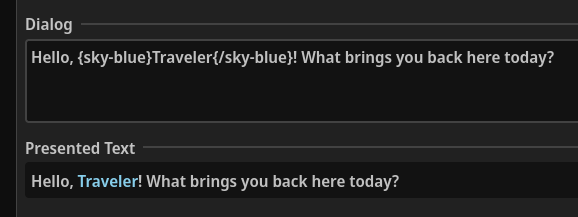
For example, if you’ve defined a Text Style with the tags of
{bold}&{/bold}, and a CSS rule offont-weight: bold;and you insert it into a Dialog Node’s dialog field like this:Hello, {bold}Traveler{/bold}!, that dialog field will be parsed into this: “Hello, Traveler!” -
Presented Text CSS Rules (optional): If you’d like to see a representation of what your styled text could look like to your player, you can define the CSS rules you’d like any text within the associated Style tags to be styled with in the Presented Text sections within NarrativeFlow.
This field can be left blank. If it is left blank, the tags will still be hidden in Presented Text sections. The text within the tags won’t have any CSS styling applied to them though.
The CSS rules you define for Text Styles are only for use in NarrativeFlow and won’t be passed to your game engine. Your game engine needs to be told how to display your text styles when it encounters them.
To the left of the four fields is a handle you can grab with your mouse to reorder Text Style definitions within a group.
To the right of each definition is an X button that will remove it, as long as there are at least two definitions within that group (because it doesn’t make sense to have an empty group).
New Text Style: This button will add a new, blank Text Style definition to the bottom of the associated group.
Using Text Styles To Insert An Image/Icon In Your Narrative/Text
Section titled “Using Text Styles To Insert An Image/Icon In Your Narrative/Text”Sometimes, you may want to insert an image or icon into your narrative, such as displaying a button to push during a tutorial, an emoji to help convey an emotion that a character is feeling, or icons that represent what effect different choices might have.
With text styles, you can signal to your game engine to insert an image/icon into your text.
For example, you could define a text style like this: <icon>A-Button</icon> or <emote>smile</emote>.
You could then tell your game engine to replace any occurrences of those tags with the associated image/icon.
Inserting Text Styles Into Nodes
Section titled “Inserting Text Styles Into Nodes”After defining a text style, you probably want to know how to insert it into your Nodes.
First, open any Node in the Node Editor (except for a Teleport Node) and click in the field you want to insert your text style into.
Near the top-middle of the Node Editor, there’s a button called “Insert Style”.
Click that button and the “Insert Text Style Menu” will appear, allowing you to click the label of the text style you want to insert, which will immediately insert the text style into the field.
Before inserting a style, you can first select the text you want styled, then when you insert the text style, it will automatically position the text style tags on either side of the selected text.