
Script View
Modify, Edit, Correct, and Review Your Narrative Quickly With The Script View
Section titled “Modify, Edit, Correct, and Review Your Narrative Quickly With The Script View”The Nodes view is great for designing your narrative chains and crafting the flow of your narrative.
Yet, it’s very difficult to review or edit your narrative without a bunch of tedious clicking, opening Nodes one at a time.
This is why the Script view was implemented.
It allows you to view all of your narrative-content Nodes (Dialog and Choice Nodes) in a document-like view, where you can review, edit, modify, and correct your narrative text.
If you’ve ever wanted to view your narrative in a document-like format or needed to review your narrative for typos, consistency, grammar, or simply review it and didn’t feel like opening each node at a time (seriously, it’d be a pain), then the Script view is your hero.
Due to the nature of dynamic, intertwining, non-linear narrative, Script view isn’t perfect. Some things may be out of order or in an order that doesn’t quite seem to flow as naturally as the brain perceives it in Nodes view.
It’s for those reasons that NarrativeFlow has both the Nodes and Script view.
Just one or the other would make certain aspects of narrative design very difficult, yet both together help to remove those difficulties.
To use the Script view, we first need some Nodes created and connected, forming a narrative chain.
Without any Nodes, there won’t be any items in Script view for us to interact with.
Similarly, since Script view only displays narrative-content Nodes (Dialog and Choice Nodes), if none of those are present in the currently open Experience, no items will be displayed in the Script view.
How To Use The Script View
Section titled “How To Use The Script View”Let’s try the Script view now.
Go ahead and create an Experience with the following Node chain:
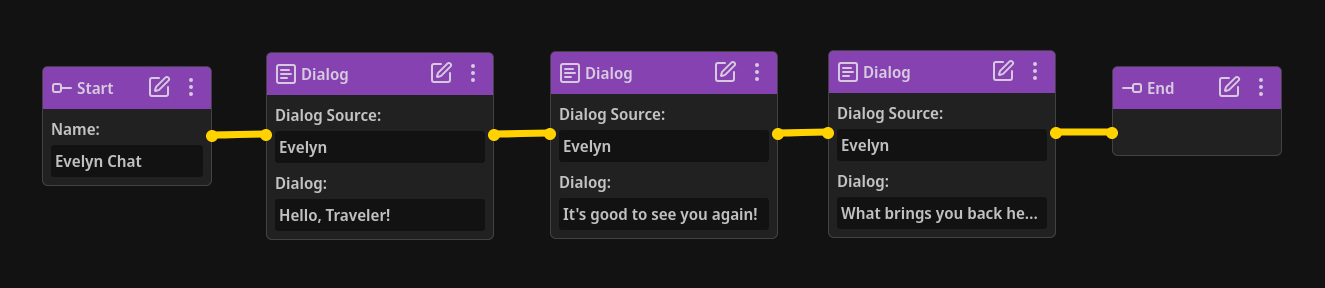
Then, let’s click the “Script” button in the workspace toolbar.
Now we’re in the Script view!
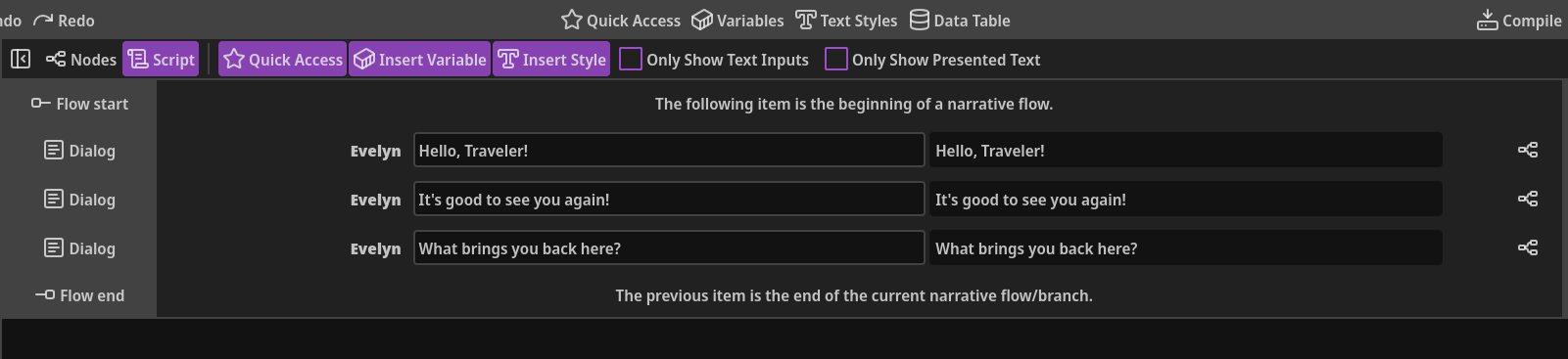
We can see five items: a flow start, three dialog items, and a flow end.
The three dialog items are our three Dialog Nodes, and any changes we make to them are the same as making changes to the Nodes themselves.
I mentioned that the Script view lists all of your “narrative-content” Nodes, not all Nodes. Let’s go back to the Nodes view and add a Variable Node in our chain.
Now, when we go back to Script view, nothing changed.
This is because Script view was designed to clear the technical clutter and help you review your narrative, check for typos or grammar mistakes, easily make changes to several Dialog and Choice Nodes at once, etc.
So instead of displaying all Node types, only your Dialog and Choice Nodes are displayed, as well as items to signify how your Dialog and Choice Nodes are connected.
Let’s go back to the Nodes view and replace the Variable Node with a Choice Node, creating a branch in our narrative.
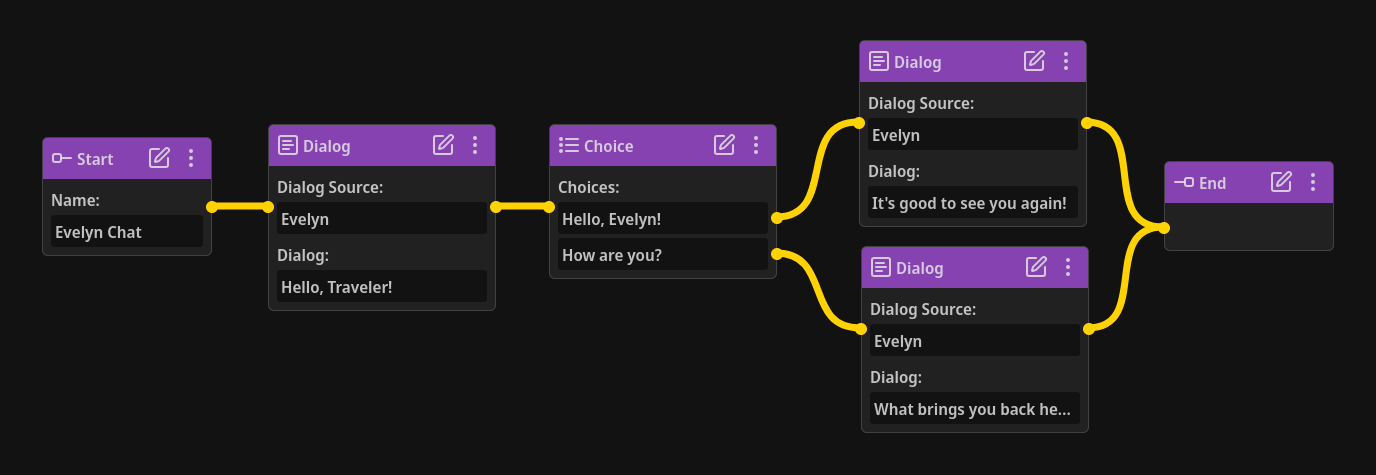
Now, when we return to the Script view, we can see that our Choice Node, because it has more than one choice, tells us that our narrative flow splits into multiple branches and provides buttons to automatically scroll our view to that item.
In addition, we now also have items at the beginning of those branches that allow us to quickly navigate back to the item that created that branch.
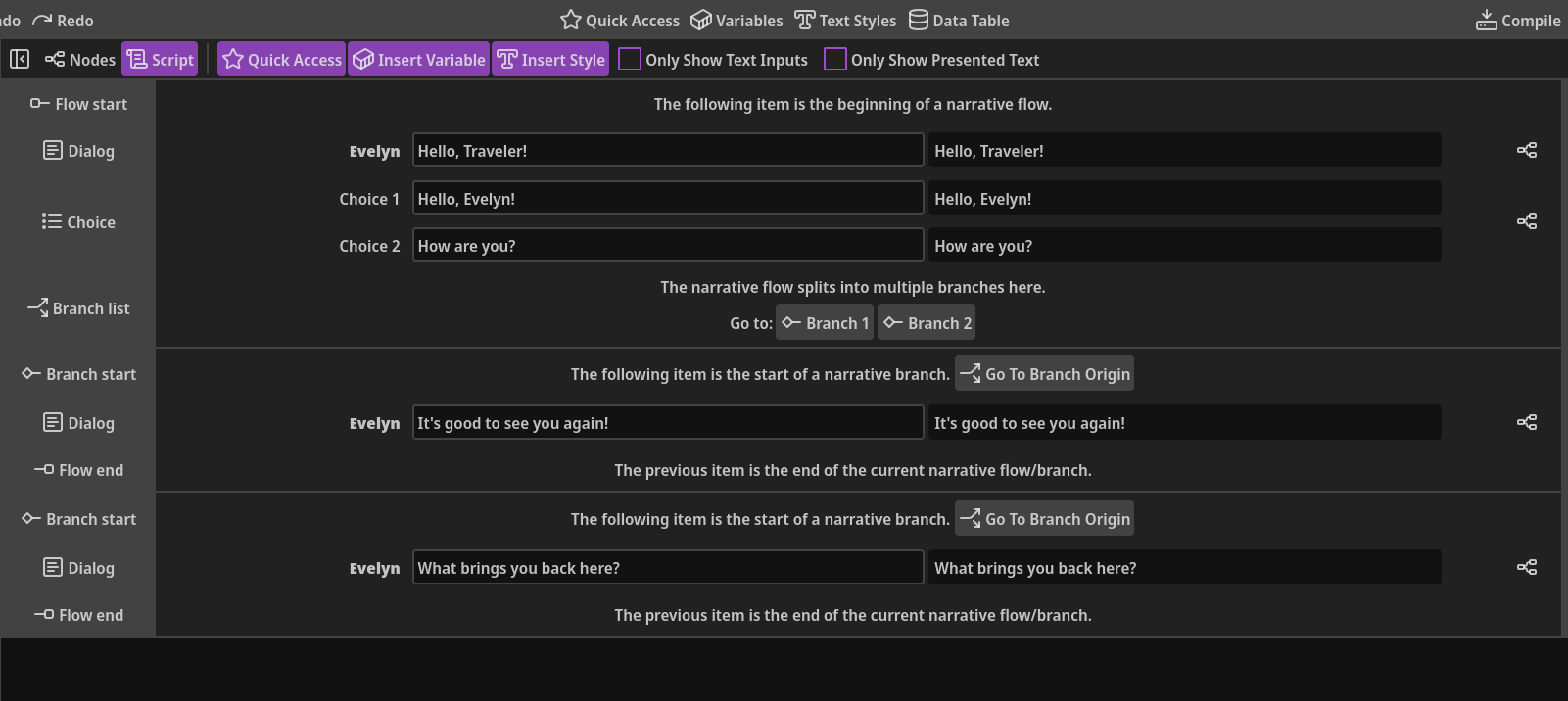
A gray line across the view means that the item following the line is the start of a branch.
A purple line across the view means that the item following the line is the start of a separate Node chain.
Narrative in video games (especially intertwined, non-linear, complex narrative) can become a web of links.
While NarrativeFlow does it’s best to display branching, sophisticated narrative in a way that makes sense, some narrative chains may be quite difficult to list in a cohesive, effective manner when presented in a document-like format.
This is simply the nature of non-linear narrative.
And this is why both the Nodes and Script views are available, not just one or the other.
While the Nodes view is great for designing the “logic” and flow of your narrative, Script view provides a different perspective tailored for reviewing, editing, proofreading, and polishing your text.
At the top of the main workspace when in the Script view, you’ll notice that the toolbar has a few different elements compared to the Nodes view.
First, there are buttons to insert Quick Access items, Variables, and Text Styles directly into the Dialog and Choice fields.
Next, there are two settings to display either only the text input fields or the Presented Text areas, which allows you to clear some of the visual noise if you don’t need both to be visible at once.