
Node Bookmarks
You can bookmark Nodes in NarrativeFlow, so you never lose the place where you were working or lose track of where that important narrative chain was.
How To Bookmark A Node
Section titled “How To Bookmark A Node”Bookmarking a Node is really easy, and you can bookmark as many as you want.
First, click the three-dot menu in the top right of a Node (except for Connector or Comment Nodes). Then, click “Bookmark”.
A popup will show asking you to give your new bookmark a name. Then click “Create”, and your new bookmark will be listed in the Node Bookmarks Left Panel tab.
The Node Bookmarks Left Panel tab
Section titled “The Node Bookmarks Left Panel tab”To see and interact with your bookmarks, click the Node Bookmarks tab in the Left Panel.
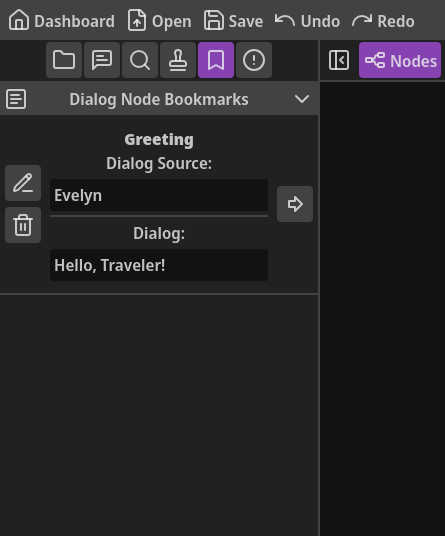
Bookmarks are organized into groups by their Node type, with a header for each type.
If no bookmarks have been made for a specific Node type, that header won’t be listed.
You can collapse/expand a group by clicking the header.
Along the left side of each bookmark, there are two buttons.
The top one let’s you rename a bookmark. The bottom will remove the bookmark (the Node itself won’t be removed though).
Along the right of each bookmark is a button to go to that Node in the workspace.
When this button is clicked, if the Node is in another Experience, it will open that Experience in the workspace.
You can tell if a bookmarked Node is in the current Experience or not by the icon of “go to Node” button:
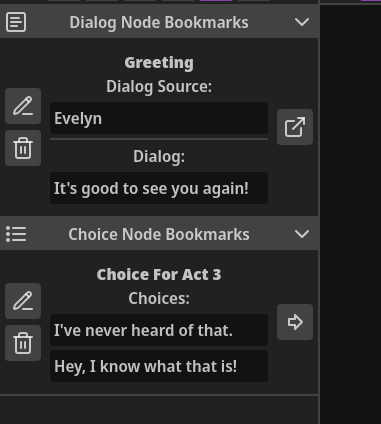
The right-facing arrow means the bookmark is in the currently open Experience.
The arrow leaving a box means the bookmark is in a different Experience.