
Data Table Modal
Experiences and Nodes are great places for your narrative chains.
Yet where should your item, character skill, or region descriptions go?
Should your in-game codex be designed as Nodes?
If so, how would that even work, and would that really be the most efficient way to implement just simple pieces of individual, isolated text?
Thankfully, NarrativeFlow has a purpose-built feature for this: the Data Table modal!
Any text-based data that doesn’t need the power or functionality of Nodes can easily be added to your Data Table and used anywhere by your game engine however you want.
You can open the Data Table modal by clicking the “Data Table” button in the menu bar.
How To Use The Data Table Modal
Section titled “How To Use The Data Table Modal”Let’s talk about each element of the Data Table modal and how to use it.
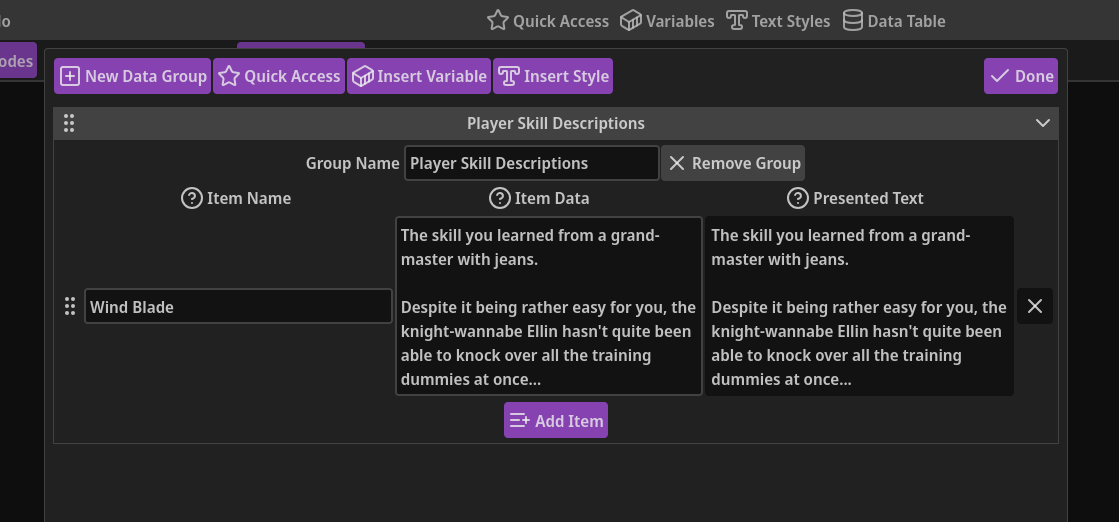
New Item Group: Since you may have hundreds of Data Table items, NarrativeFlow helps keep them organized with groups.
Simply click this button to add a new group to the bottom of the list.
Quick Access: If you want to insert a Quick Access item into a field, after clicking in the field where you want to insert the item, you can click this button, which will open a context menu listing every Quick Access item you’ve defined.
Then, simply click the label of the item you want to insert and it will be inserted where your text cursor was.
Insert Variable: If you want an item to contain a variable you’ve defined, you can easily insert it into any field by clicking this button then clicking the label of the variable you want to insert.
Insert Style: If you want to insert text styles into your content, you can do so by clicking this button and then clicking the label of the text style you want to insert.
Done: When you’re done adding or modifying your Data Table items, click this button to close the modal.
If there are errors or problems with any item definition, this button will be disabled and some text explaining the problem will appear to the left of the Done button.
If you see this error text, don’t worry, it doesn’t mean you did something wrong.
It’s simply there to help you avoid name conflicts, empty name fields, etc.
Drag-n-Drop Sorting Handle: If you need to rearrange groups, click and hold the grip icon (the six-circle icon to the left of the group header) with your left mouse button then drag that group wherever you need it in your list of groups.
Collapsing groups by clicking on their header before you rearrange groups can make rearranging much easier.
Collapse/Expand Icon: The icon to the right of a group header indicates whether a group is collapsed or expanded.
To toggle, simply click anywhere on a group’s header except for the sorting handle on the left of the header.
Group Name: You can rename a group to anything you want, helping you stay organized. Notice how a group’s name is displayed on its header.
If you want to remove a group, you can click the aptly named “Remove Group” button just to the right of the group name field. Note that all Data Table items contained within the group will be removed as well.
Item Definitions: Each item definition consists of an item name and a value. To the right of each definition is a Presented Text area.
-
Item Name: This is the name of the item that you’ll reference in your game engine so it knows where to find the content (the value) associated with this item.
-
Value: This is the content you want associated with this item (i.e. the content it “contains”). This content is what your game engine will receive when it requests a Data Table item.
-
Presented Text: When your items contain variables or text styles, NarrativeFlow will parse them automatically and display a representation of what your player could see in your game engine.
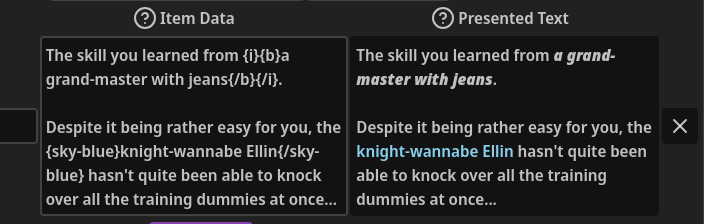
Variables will be parsed to their default value, and text within text style tags will be styled with the CSS rules associated with the style’s definition.
To the left of each item definition is a handle you can grab with your mouse to reorder items within a group.
To the right of each definition is an X button that will remove it, as long as there are two or more items in a group (because it doesn’t make sense for a group to have no definitions).
Add Item: This button will add a new, blank item definition to the bottom of the associated group.